
This guide provides step-by-step instructions on adding hidden fields in Wix Studio. If you’re using Wix’s Classic form builder, refer to this guide, and for Wix’s new form builder users, follow these instructions.
Attributer is a lightweight script that captures the source of your visitors—such as Paid Search, Paid Social, Organic Search, and more—and passes this data to hidden form fields.
Since Wix Studio doesn’t support hidden fields, this guide explains how to use the Velo API to capture attribution data.
Step 1: Append Additional JavaScript
Before proceeding, ensure that the main Attributer script has been added to the <head> section of your website. If it hasn’t been set up yet, you can follow these instructions for adding it through the Wix dashboard or refer to these steps for implementing it via Google Tag Manager.
After installing the main Attributer script in your <head>, add this supplementary code below it:
<script>
window.onmessage = (event) => {
if (event.data.source != "ATTRIBUTERINTERNAL" || event.data.type != "ping" || !document.FlareTrk?.data) {
return;
}
console.log("External got message, sending data")
event.source.postMessage({ source: "ATTRIBUTER", type: "data", data: document.FlareTrk?.data }, "*");
};
</script>
Ensure the structure matches:

Step 2: Create & Hide Six Form Fields
1. Add six Short answer fields to your form.

2. Hide each field using the “eye” icon.

Final layout:

Step 3: Assign Title & Field Key
Configure each field with these exact titles and keys:
| Field | Title | Key |
|---|---|---|
| 1 | Channel | channel |
| 2 | Channel Drilldown 1 | channel_drilldown_1 |
| 3 | Channel Drilldown 2 | channel_drilldown_2 |
| 4 | Channel Drilldown 3 | channel_drilldown_3 |
| 5 | Landing Page | landing_page |
| 6 | Landing Page Group | landing_page_group |


Example:

Step 4: Insert an Embed Element
1. Place an Embed Block near your form.

2. Configure it with:
- ID = attributer-internal
- Hidden = Make sure this checkbox is checked
- Collapse = Make sure this checkbox is checked
Settings preview:

Step 5: Add Code to the Embed Block
Click “Edit Code” on the embed block.

Paste this code:
<!--HTTPS only...-->
<script>
// Send messages to external until we get a response
let contacted = false;

function pingExternal() {
if (contacted) {
return;
}
window.parent.postMessage({ source: "ATTRIBUTERINTERNAL", type: "ping" }, "*");
window.setTimeout(pingExternal, 1000);
}

window.onmessage = (event) => {
if (event.data.source != "ATTRIBUTER") {
return;
}
contacted = true;
const data = event.data.data;
const send_data = {
"channel": data.drillData.channel,
"channel_drilldown_1": data.drillData.drillDown1,
"channel_drilldown_2": data.drillData.drillDown2,
"channel_drilldown_3": data.drillData.drillDown3,
"channel_drilldown_4": data.drillData.drillDown4,

"gclid": data.gclid,
"msclkid": data.msclkid,
"fbclid": data.fbclid,
"id": data.id,

"landing_page": data.landing_url,
"landing_page_group": data.landing_page_group
};
window.parent.postMessage({ source: "ATTRIBUTERINTERNAL", type: "data", data: send_data }, "*");
};

pingExternal();
</script>
Result like this:

Step 6: Retrieve Your Form ID
Select your form, and note the Form ID.
Example:

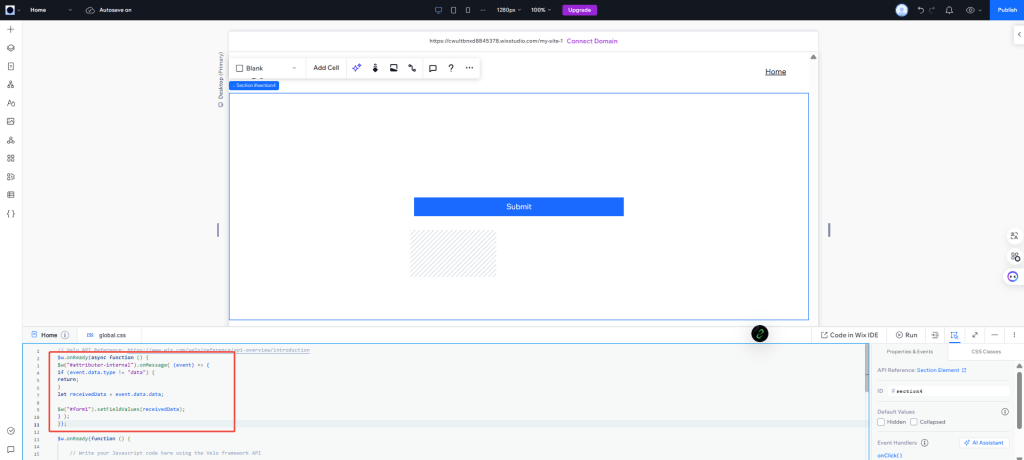
Step 7: Generate Custom Code for Your Form
Replace the highlighted formId value with the one you copied from Wix.
$w.onReady(async function () {
$w("#attributer-internal").onMessage( (event) => {
if (event.data.type != "data") {
return;
}
let receivedData = event.data.data;

$w("#formid").setFieldValues(receivedData);
} );
});
Step 8: Deploy the Final Code
Paste the generated script into your page’s Custom Code section:
Step 9: Test the Integration
Submit a test entry on your form. Then go to Forms & Submissions in your Wix dashboard to confirm that the attribution data has been captured.


